
There I was trying to bring my FreePBX system back on line months after moving. Not only did I bring it back on line, but decided to upgrade, only to discover that FreePBX now runs on Debian 12, so had to walk through all the upgrades. That included changing IP address to the new network, and moving the system from Centos 7 to Debian 12.14. Everything seemed to go okay, including upgrade of FreePBX to 12.7.8.
Then it hit…the only phone currently connected was a Grandstream 2135, and it was not liking something. Phone found a DHCP IP address, but had to manually login as user. Oops…what are/were the admin and user passwords. Not finding them written down or stored in a password file, was able to reset the phone to factory default. That wasn’t a very smart move. Now it’s a reconstruct (reprogram) the phone – new FreePBX IP, etc. Since the phone is a 4 account phone, there were two accounts in use, connected to two different PBXs.
Had no problem looking at the phone system programming for the Mitel account (#2) and getting that correctly programmed, but I had programmed account #1 for the FreePBX with the wrong ID and “secret” or authentication. The phone showed RED for registration, could make outgoing calls, but could not be called. Calls went directly to the VM for the extension. I opened the WebUI for another Grandstream phone that worked to FreePBX and compared the programming and couldn’t find any issues.
That led to a search on the internet, which got me all kinds of answers (thanks to AI), but none of those seemed to give any clear direction – that included doing things like “WireShark” traces and firewall inspections. Neither of those seemed reasonable since there was a phone working to the FreePBX.
THEN it hit as I searched for “problem registering….” Ran across a post from glsarto gian that said “ok, I found why some phones wouldn’t talk to to FreePBX… The evil PBX had put them in jail…They were configured for an older FreePBX, same IP, so as soon as it was up they started to try to connect, with wrong credentials.” He had three possible steps to fix, which were: “1. add ignoreip in fail2ban conf; 2. remove them from jail; or 3. add safe networks in SysAdmin/IntrusionDetect.”
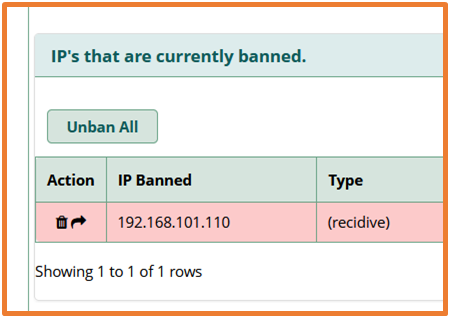
So, I began the search for “fail2ban” and how to configure it – I learned that you really should not manually edit the fail2ban config file. Instead, the answer is to logon to FreePBX, go to Admin/System Admin/Intrusion Detection and you will find the answer.
What I found was that due to my user/secret programming in the phone, it kept trying to register and got banned. Knowing where to go and what to change made this an easy fix. A click on the garbage can (DUH!) got rid of the banned IP and the phone went to green, indicating that it is now registered!
One lesson learned that I shouldn’t have forgotten. On an install of a PBX and SIP phones, make a uniform standard for registering phones and WRITE DOWN passwords and registration concepts! That way, as you go from phone to phone, you don’t need a book of ID and passwords. In this case, all phones should have the same “admin” and “user” passwords (document them) and the secret or registration password (or form thereof) should be the same for all phones.
